---
title: Inviting an Attendee to the AutoTrainer Role Play Tool.
description: Give your Sales, F&I, Service, and BDC team members access to practice scenarios with AutoTrainer’s Role Play tool by inviting them as Attendees
---
[Skip to content](https://kb.autotrainer.com/en/invite-an-attendee-to-the-autotrainer-role-play-tool#main-content)
English
Show submenu for translations
[](https://kb.autotrainer.com/en?hsLang=en)
- [Sign out](https://portal.autotrainer.com/_hcms/mem/logout)
Open main navigation
Close main navigation
- [Sign out](https://portal.autotrainer.com/_hcms/mem/logout)
- English
Show submenu for translations
- [Contact us](https://www.autotrainer.com/contact-us)
[Contact us](https://www.autotrainer.com/contact-us)
How can we help you?
- There are no suggestions because the search field is empty.
1. [AutoTrainer FAQ](https://kb.autotrainer.com/en?hsLang=en)
2. [Roleplay Solution](https://kb.autotrainer.com/en/roleplay-solution?hsLang=en)
3. [RolePlay How-To's](https://kb.autotrainer.com/en/roleplay-solution?hsLang=en#roleplay-how-tos)
# Inviting an Attendee to the AutoTrainer Role Play Tool.
## This article will show you how to invite an Attendee to the Role Play Tool In AutoTrainer.
### **Who Can Do This**
- **Admins** may be limited to the dealerships domain, depending on your account settings. Anyone outside of these domains, please reach out to [jude@autotrainer.com](mailto:%20jude@autotrainer.com)to have them added.
Tip: You’ll manage invitations from the Training area. Attendees show as Invited until they sign up; they switch to Active once they log in.
### Step-By-Step: Invite an Attendee
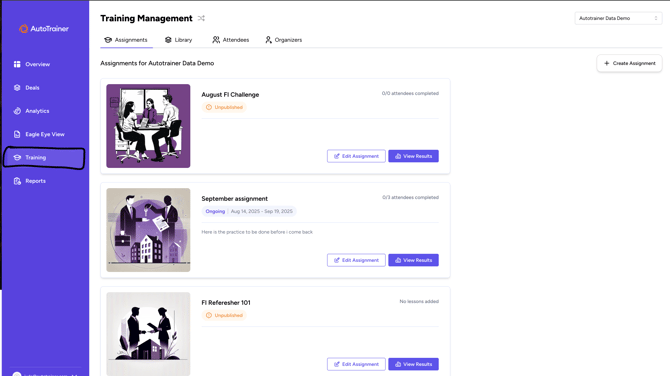
1. **Open Training**
1. From the left sidebar. Select Training
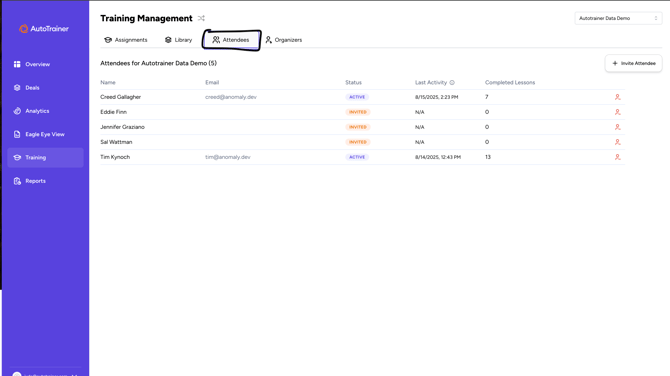
2. **Go To Attendees tab**
1. at the top of the Training Management, Click The Attendees to see your list of users and their status
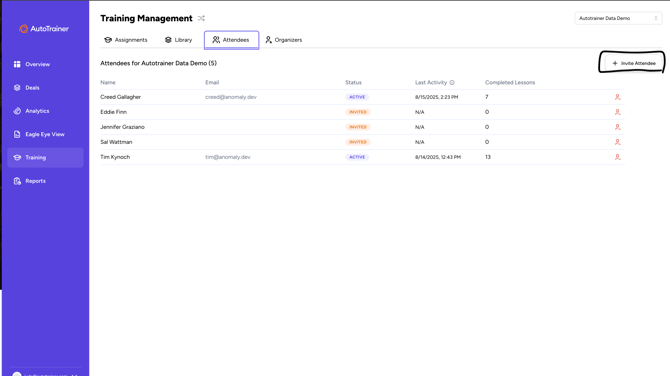
3. **Click The Invite Attendee**
1. Use the **Invite Attendee** button in the upper-right
4. **Enter details and send**
1. In the **Invite Attendee** pop-up, enter the person's Email and Name, then click **Invite**
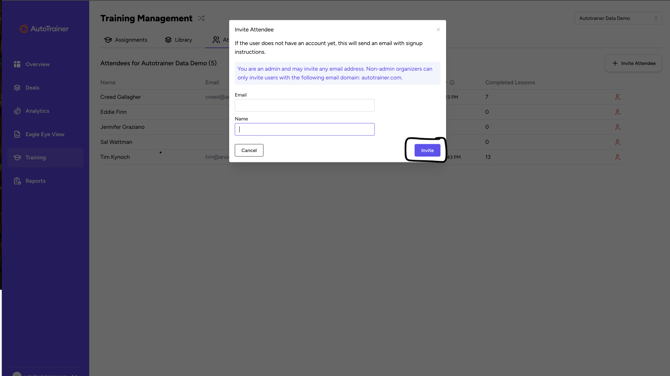
That’s it! The attendee receives an email with sign‑up instructions and will appear in the list with the status Invited until they complete sign‑up.
### **What Happens Next?**
- The Invitee gets an email with a link to create their account ( or log in if they already have one)
On your **Attendees** list, you'll see:
- **Status:** *Invited* or *Active*
- **Last Activity:** time stamp of their most recent session
- **Completed Lessons:** running total of lessons they've finished
**Next Steps:** After they're active, go to **Assignments** to add them to Role Play assignments.
### **Troubleshooting & FAQs**
I **don’t see the “Invite Attendee” button.**
You may not have permission. Ask an Admin to invite the user or to grant you invite permissions. Some accounts also restrict non‑admins to inviting only users from an approved email domain.
**The attendee didn’t get the invitation email.**
Ask them to check spam/junk. If your IT team filters emails, whitelist AutoTrainer’s notification domain. You can also remove and re‑invite the user if needed.
**Can I invite a personal (non‑work) email?**
Admins can invite any email. Non‑admin organizers may be limited to your dealership’s domain based on settings.
**How do I remove or re‑invite someone?**
From **Training → Attendees**, use the action icons on the right of the user’s row to remove an attendee or send a fresh invite.
### Related articles
- Create an Assignment in AutoTrainer
- Add or Remove Lessons from an Assignment
- Track Attendees Progress in Reports
- [Getting started](https://kb.autotrainer.com/en/getting-started?hsLang=en#main-content)
- [AutoTrainer One-Sheet](https://kb.autotrainer.com/en/getting-started?hsLang=en#autotrainer-one-sheet)
- [Roleplay Solution](https://kb.autotrainer.com/en/roleplay-solution?hsLang=en#main-content)
- [RolePlay How-To's](https://kb.autotrainer.com/en/roleplay-solution?hsLang=en#roleplay-how-tos)
- [Videos](https://kb.autotrainer.com/en/roleplay-solution?hsLang=en#videos)
- [Recording](https://kb.autotrainer.com/en/recording?hsLang=en#main-content)
- [Videos](https://kb.autotrainer.com/en/recording?hsLang=en#videos)
- [Reporting and Data Management](https://kb.autotrainer.com/en/reporting-and-data-management?hsLang=en#main-content)
- [Videos](https://kb.autotrainer.com/en/reporting-and-data-management?hsLang=en#videos)
[](https://autotrainer.com)
[mailto:support@autotrainer.com](mailto:support@autotrainer.com)
Copyright © 2025, Anomaly Labs Inc d/b/a AutoTrainer