
What you’ll see
1) Main charts (trends over time)
- The left chart shows your selected Chart Metric over time for the overall selection (e.g., your store or group).
- The right chart breaks the same metric out by manager over the same time range.
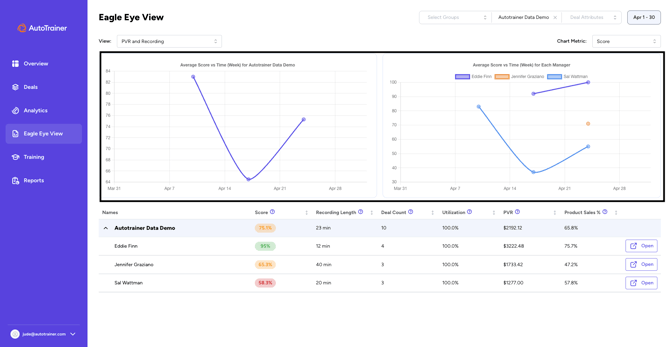
Figure 1: Eagle Eye View – two trend charts showing metric over time and by manager
2) KPI table (names, scores, and drill-downs)
Below the charts is a table listing the current rollup and each manager. It shows the metrics aligned with your Chart Metric choice and time range.
Columns you may see:
- Score: overall training/performance score.
- Recording Length: average duration of recordings.
- Deal Count: number of deals/roleplays counted
- Utilization: how consistently the too is being used during the period
- PVR: average per retail value
- Product Sales %: percentage of sessions with product add-on success.
Click Open on any row to drill into that person/group 's detailed results.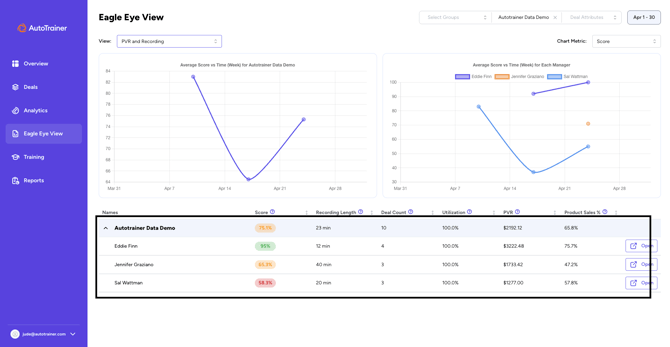
Figure 2: Eagle Eye View – KPI table with score, recording length, deal count, utilization, PVR, product sales, and Open buttons.
How to use the controls
A) Choose Filters
At the top of the page you can narrow what you are comparing.
- Select Groups: focus on one or more locations/teams.
- Account / Data Set – pick the account scope to analyze.
- Deal Attributes – (optional) filter to a specific subset of deals.
- Date Range – set the period (e.g., Apr 1–30).
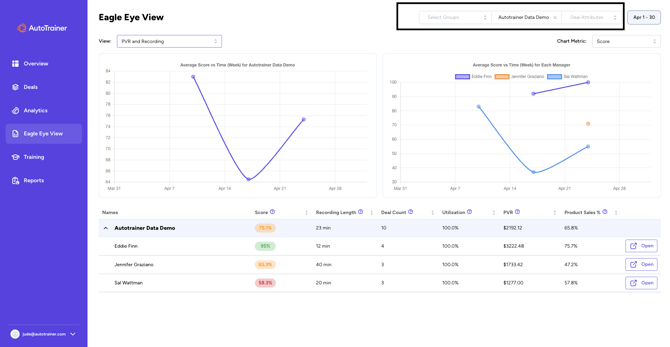
Figure 3: Eagle Eye View – top filter bar with groups, account, deal attributes, and date range.”
B) Pick A "View"
Use the View dropdown to switch the report’s context.
Common options:
- PVR and Recording: financial+activity metrics
- Objection Analysis: Category / Buying Signal / Product / Product Concern – switch to objection-focused views to analyze patterns in role plays.
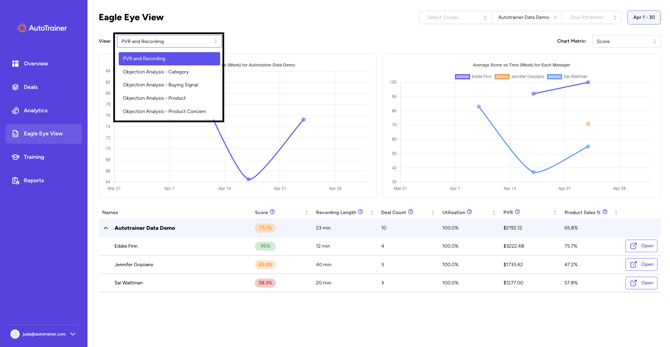
Figure 4: Eagle Eye View – View dropdown showing PVR & Recording and Objection Analysis options.”
C) Choose a Chart Metric
This sets what both charts visualize and which columns are emphasized in the table.
Typical choices:
- Score
- Recording Length
- Deal Count
- Utilization
- Customer Survey Sent Count (if enabled)
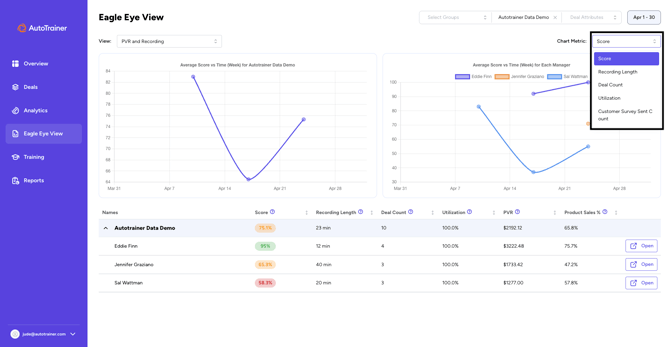
Figure 5: Eagle Eye View – Chart Metric dropdown with Score, Recording Length, Deal Count, Utilization, Customer Survey Sent Count.
Example workflows
- Compare managers week-over-week:
- Set View = PVR and Recording, Chart Metric = Score, choose This Month, then scan the right chart to see whose trend is rising or dipping.
- Link activity to results:
With Chart Metric = Recording Length or Utilization, check whether activity increases line up with Score or PVR improvements over the same period. - Dive deeper into one manager:
Find them in the table and click Open to jump to their detailed results.
Troubleshooting & tips
- "My numbers look off."
- Double-check your Date Range, Select Groups, and Deal Attributes filters—they change both charts and the table.
- “Why is Utilization 100%?”
- That may be correct for the chosen period and scope; try widening the Date Range or changing View to see more variation.
- “I don’t see a manager.”
- Make sure their group is included in Select Groups and that you’re on the right Account / Data Set.