---
title: Reading the Analytics Reporting Tab
description: "Audience: Managers and team members who review AI RolePlay and real-call performance in AutoTrainer\nGoal: Help you interpret the Analytics screen so you can spot coaching opportunities fast"
---
[Skip to content](https://kb.autotrainer.com/en/how-do-i-read-my-analytics-tab-in-autotrainer#main-content)
English
Show submenu for translations
[](https://kb.autotrainer.com/en?hsLang=en)
- [Sign out](https://portal.autotrainer.com/_hcms/mem/logout)
Open main navigation
Close main navigation
- [Sign out](https://portal.autotrainer.com/_hcms/mem/logout)
- English
Show submenu for translations
- [Contact us](https://www.autotrainer.com/contact-us)
[Contact us](https://www.autotrainer.com/contact-us)
How can we help you?
- There are no suggestions because the search field is empty.
1. [AutoTrainer FAQ](https://kb.autotrainer.com/en?hsLang=en)
2. [Reporting and Data Management](https://kb.autotrainer.com/en/reporting-and-data-management?hsLang=en)
# Reading the Analytics Reporting Tab
## This article will show you how to read your Analytics Reporting Tab, and use the data for coaching your team effectively.
### 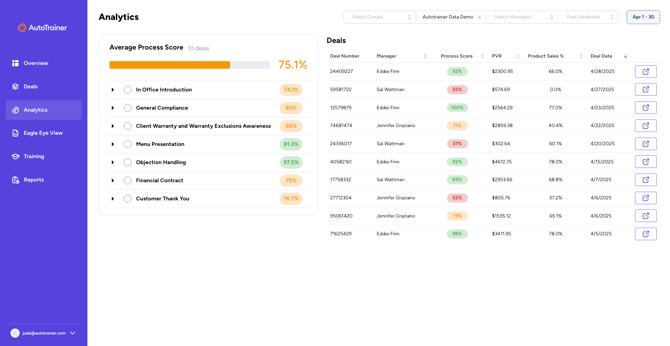What you will see at a glance
**A. Filter and Date Range (Top Bar)**
- Use the drop-downs to narrow the results by **Groups**, **Dealerships**, **Managers**, and **Deal Attributes**. Use the date chip on the right to set the period you’re reviewing.
**Tip:** Start broad (all groups/managers) to find trends, then narrow to a single manager or store to coach the right people.
**B. Average Process Score (left panel header)**
- This is the overall compliance score for the selected timeframe and filters. It rolls up all checks across all deals/roleplays.
**C. Process Areas with Scores (left panel)**
Examples: *In Office Introduction*, *General Compliance*, *Menu Presentation*, etc.
- The % next to each area shows performance in that category.
- Color badges are visual cues (green ≈ strong, orange/yellow ≈ mixed, red ≈ needs attention).
**D. Deals Table (right panel)**
- **Deal Number**
- **Manager**
- **Process Score** (overall for that deal)
- **PVR** (If available)
- **Product Sales %** (if available)
- **Deal Date**
Use the column headers to sort (up/down arrow). The square-with-arrow icon on the right opens the record for deeper review.
### How to use the screen (with screenshots)
#### **1)Start with filters to set your context**
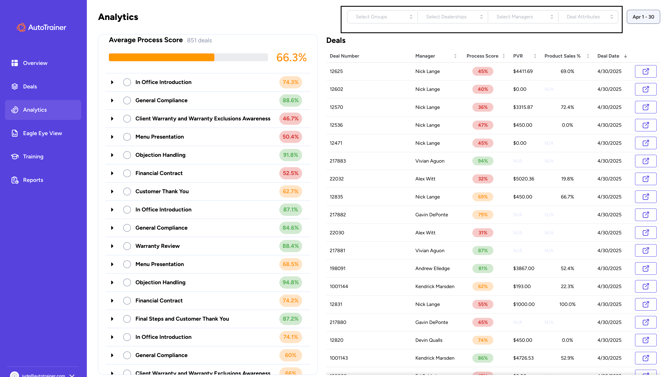
***Figure 1: AutoTrainer Analytics with filters for Groups, Dealerships, Managers, Deal Attributes, and Date Range highlighted***
- Pick your **timeframe** first
- Apply **Groups/Dealerships/Managers** to focus your analysis.
- The **Average Process Score** updates instantly based on your filters.
#### **2) Read the category scores to find trouble spots**
**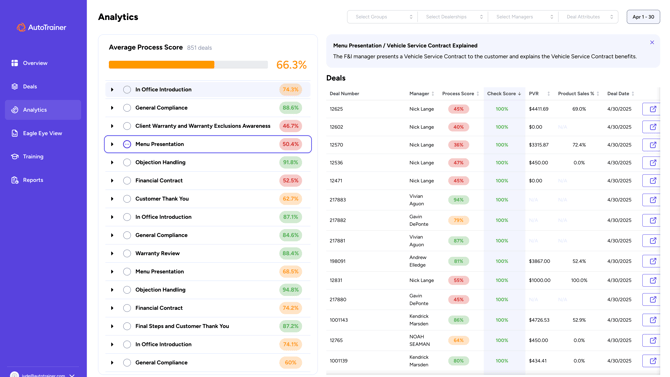**
***figure 2: Process categories with colored percentage badges indicating performance.***
- Scan for **red or low %** categories; that’s where coaching will have the biggest impact.
- Click a **category name** to expand its **checks** (specific behaviors).
#### **3) Drill into a category to see check-level performance**
**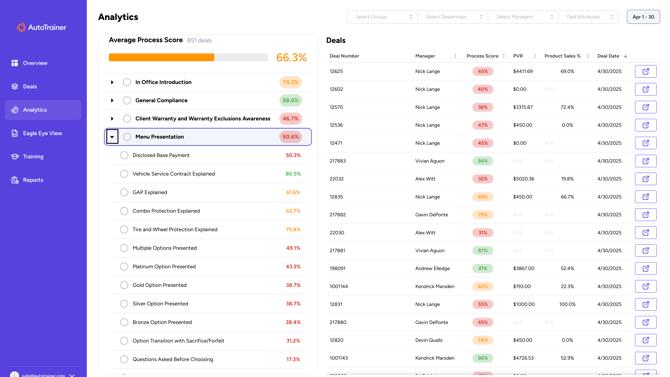**
**Figure 3: Expanded category showing individual checks like Vehicle Service Contract Explained with their scores.**
- Each **check** is a single, coachable behavior (e.g., *Vehicle Service Contract Explained*).
- The % next to a check shows how often your team completed that behavior correctly.
#### **4) Select a check to get definitions and deal-by-deal results**
**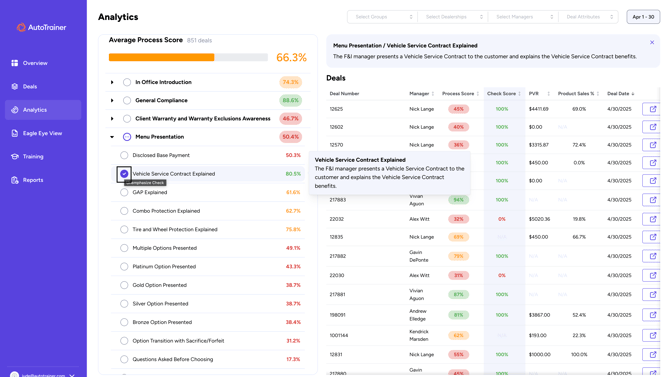**
**FIgure 4: *Selected check with definition tooltip, with Check Score column sorted by that specific Check.***
- Click a **check** to:
- See a **plain-English definition** of the behavior.
- Sort the **Check Score** column to bring misses to the top
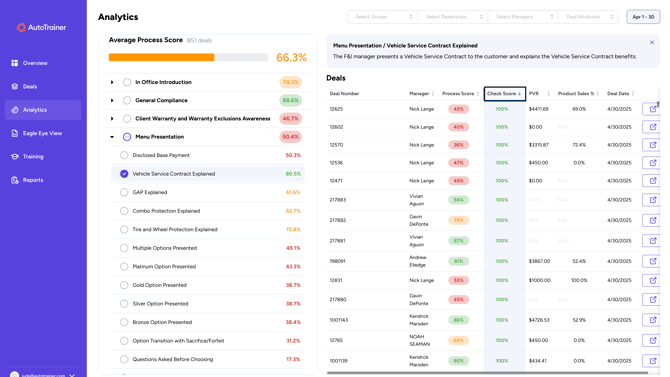
***figure 5: Deals table sorted by Check Score***
- You can sort **Deals** table by **Process Score,** **Check Score,** or another category fromhigh to low or low to high by clicking the up/down arrow next to the title at the top of the column
- Clicking the blue square on the far right of the **Deals** panel will open that specific deal for review
#### **Example coaching workflow**
1. **Choose your period** ( e.g, last 30 days) and the **team/manager** you want to review
2. In the left panel, find categories with the lowest scores **(red/orange)**
3. **Expand** the category, and select the weakest check
4. In the deals table, sort by **Check Score** to surface missed (0%)
5. Click the **open** icon on any missed deal to review details and create a targeted coaching plan.
6. Repeat weekly and track category/check % moving from **red → yellow → green**.
#### **What the numbers mean (quick glossary)**
- **Average Process Score:** Overall compliance across all checks and deals in view.
- **Category Score:** Compliance for one process area (e.g., *Menu Presentation*).
- **Check Score (per deal):** Whether a single behavior was completed correctly on a specific deal.
- **PVR / Product Sales %:** Business outcomes that can be compared alongside process execution.
- **Colors:** Visual cues to help you prioritize—green (strong), orange/yellow (needs attention), red (urgent focus).
### **FAQs**
- **Why doesn’t my Average Process Score match my average of category scores?**
It’s a weighted rollup of all checks across all deals; category weights and volume can differ.
- **I selected a check but don’t see the Check Score column.**
Ensure the check is **highlighted** in the left panel. The column appears only when a single check is selected.
- **Can I compare managers or stores?**
Yes—use the **Managers** and **Dealerships/Groups** filters to jump between views with the same timeframe.
- [Getting started](https://kb.autotrainer.com/en/getting-started?hsLang=en#main-content)
- [AutoTrainer One-Sheet](https://kb.autotrainer.com/en/getting-started?hsLang=en#autotrainer-one-sheet)
- [Roleplay Solution](https://kb.autotrainer.com/en/roleplay-solution?hsLang=en#main-content)
- [RolePlay How-To's](https://kb.autotrainer.com/en/roleplay-solution?hsLang=en#roleplay-how-tos)
- [Videos](https://kb.autotrainer.com/en/roleplay-solution?hsLang=en#videos)
- [Recording](https://kb.autotrainer.com/en/recording?hsLang=en#main-content)
- [Videos](https://kb.autotrainer.com/en/recording?hsLang=en#videos)
- [Reporting and Data Management](https://kb.autotrainer.com/en/reporting-and-data-management?hsLang=en#main-content)
- [Videos](https://kb.autotrainer.com/en/reporting-and-data-management?hsLang=en#videos)
[](https://autotrainer.com)
[mailto:support@autotrainer.com](mailto:support@autotrainer.com)
Copyright © 2025, Anomaly Labs Inc d/b/a AutoTrainer