
Who can use this?
- Organizers/Admins with access to the workspace and Library courses.
Tip: If you don’t see Results Explorer, make sure you’re on the Library tab (not Assignments) and that you have Organizer access for the selected workspace.
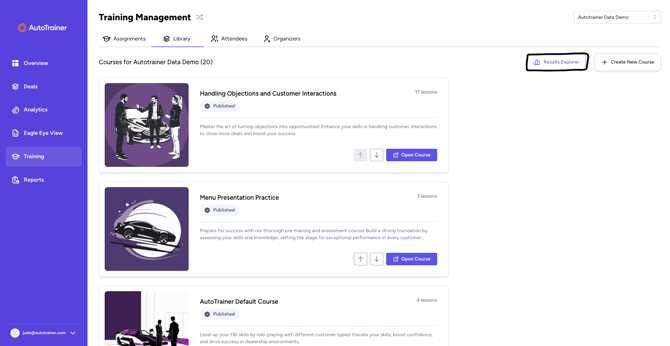
- Open Results Explorer
- From the left navigation, click Training.
- Select the Library tab across the top.
- Click Results Explorer in the top‑right.
- Understand the Results Explorer layout
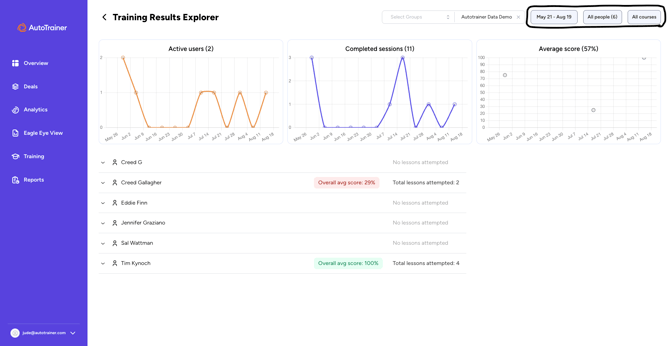
- Active users – number of distinct users practicing over time.
- Completed sessions – count of finished lesson attempts.
- Average score – mean of scored attempts in the selected range.
- Below the charts is your roster list. Each row represents a person. Expanding a person reveals their courses, lessons, and attempts.
- Filter your view (Top Right of Screen)
- Groups: (left dropdown): limit to one or more groups/teams (optional).
- Workspace switcher (next dropdown): choose the workspace (e.g., Autotrainer Data Demo). Use this if you have access to more than one Group.
- People chip: include all people or a subset.
- Courses chip: include all courses or specific ones.
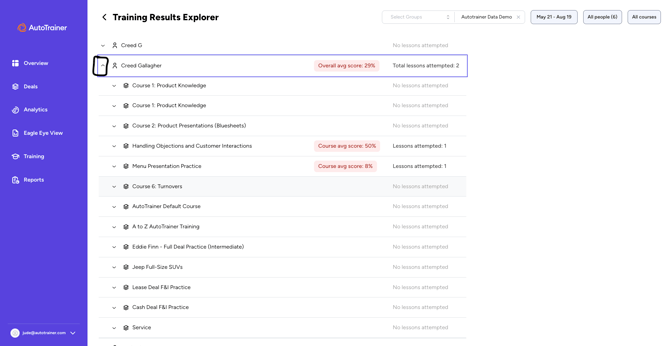
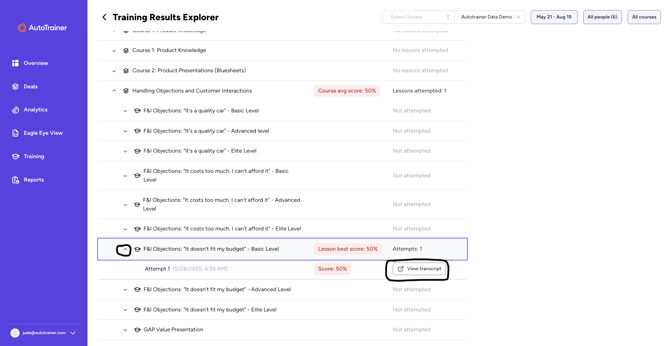
- Expand a person → see courses
- Click the chevron ▸ next to a person to expand their results.
- You’ll see a list of courses with Course avg score and Lessons attempted badges.
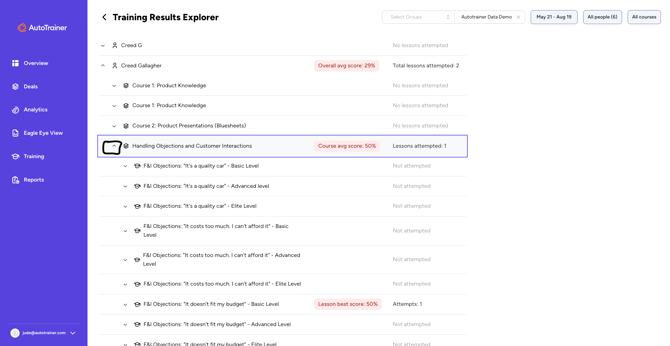
- Expand a course → see lessons
- Click the chevron ▸ next to a course to reveal its lessons.
- Each lesson shows status (e.g., Not attempted) or the best score if attempted.
- Expand a lesson → open an attempt
- Click the chevron ▸ next to a lesson to see individual Attempts (timestamped).
- Click View transcript on the attempt you want to review.
- Review the transcript & summary (How to read the Transcript once it opens).
- Scenario header (deal stage, vehicle, purchase price, rate/term).
- Coach summary with quick recommendations.
- Key metrics like Customer speaking ratio, Your speaking rate, and Filler words rate.
- Persona & Scenario details on the right.
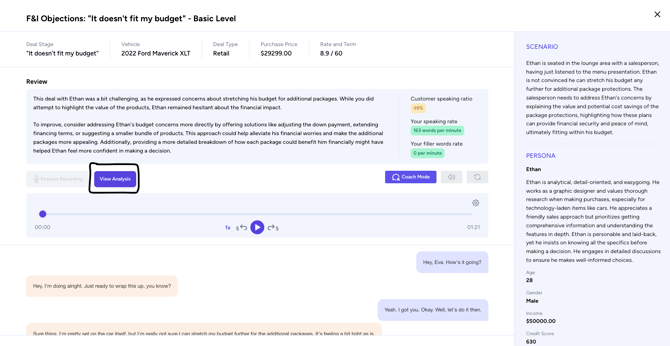
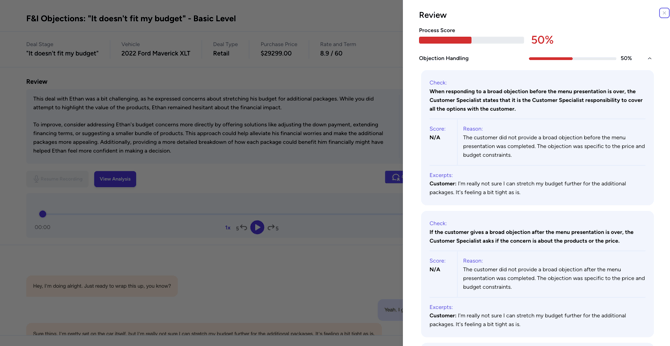
- Open AI Analysis (rubric results) Click on View Analysis to open the detailed scoring panel. Here you will see:
- Process Score (overall rubric score for the attempt).
- Category breakdowns (e.g., Objection Handling).
- Checks with Reason and Excerpts pulled from the conversation. Items may show N/A if the scenario criteria didn’t occur.
- Common actions & tips
- Sort your roster by clicking column headers (where supported) to find outliers.
- Narrow to a single lesson using the Courses filter, then drill into users.
- Coaching cadence: Filter to the last week → expand each rep → review one attempt per rep → leave feedback in your team’s coaching channel or 1:1 notes.
- Low attempt counts? Broaden the date range or switch to Assignments for compliance tracking.
Troubleshooting
- I don’t see any data. Clear filters, expand the date range, or verify the workspace/group selection.
- I can’t open a transcript. You must have Organizer permissions for that course and workspace.
- Scores look low or N/A. Some rubric checks only apply when specific behaviors occur; use the Reason text in Analysis for context.