
What you’ll create
A Role play lesson that includes:
- A Scenario ( what the learner sees)
- A Hidden Playbook (Instructions on the AI Sees)
- Optional Customer Initial Message (controls who speaks first)
- Scoring Checks (What behaviors you want to assess)
Key concepts
- "Scenario is learner-facing"
- "Hidden Playbook is AI-only and informs how the AI should act."
- "If Customer Initial Message has text, the AI speaks first. If it’s blank, the learner speaks first."
Step 1: Open the Course you want to add a lesson to
- Go to Training → Library.
- Find your course and click Open Course.
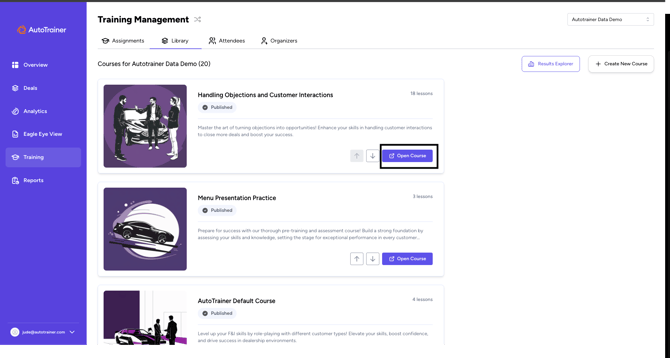
Figure 1: Open Course Button
Step 2: Add a new lesson
- In the Course, click Add Lesson
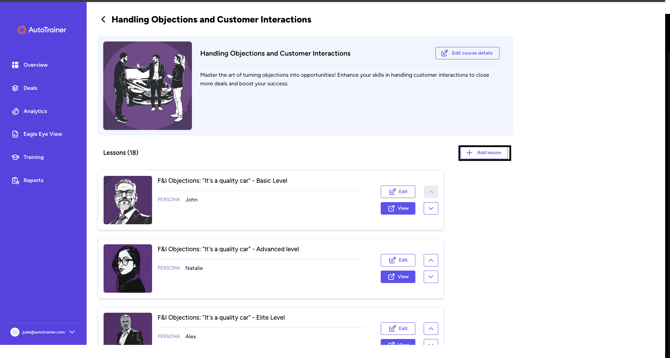
Figure 2: Add Lesson Button
You'll land on Create a New Roleplay Lesson
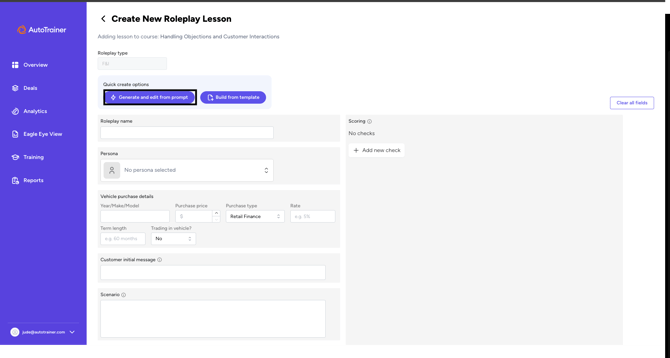
Figure 3: Generate and edit from Prompt Button
Step 3: Choose how to build
You have two options at the top:
- Generate and edit from prompt – type a short brief and let AI draft the lesson. (Recommended for speed.)
- Build from template – start from a prebuilt framework.
Click Generate and edit from prompt.
Step 4: Describe the scenario (the prompt)
- In Generate roleplay, describe the situation in plain language.
Examples to include:
- Who is contacting whom and why
- Buyer/Service Context and goal
- Likely objections and emotions
- Any Constraints (compliance/tone/time)
- Click the submit icon (↑) to generate.
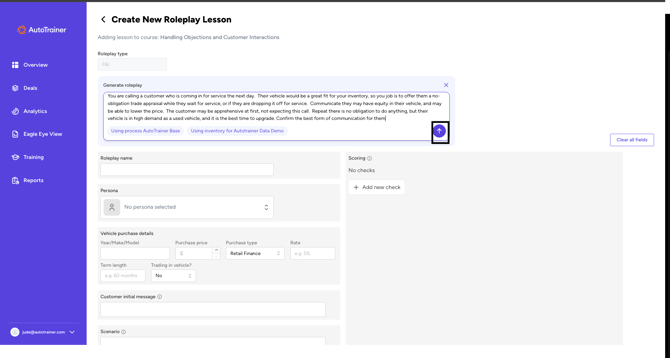
Figure 4: Example of The Generate prompt being used.
Good prompt example (adapt to your store):
“You are calling a service customer who’s booked for tomorrow. Offer a no-obligation trade appraisal while they wait. Emphasize potential equity and high demand. Reassure there’s no pressure. Confirm best communication method.”
Step 5: Review and complete the lesson fields
After generation, the form populates. Review and adjust:
A. Basics
- Roleplay name-Give it a clear, specific title
- Persona- Select the customer persona (difficulty is shown in the selector from 1-5)
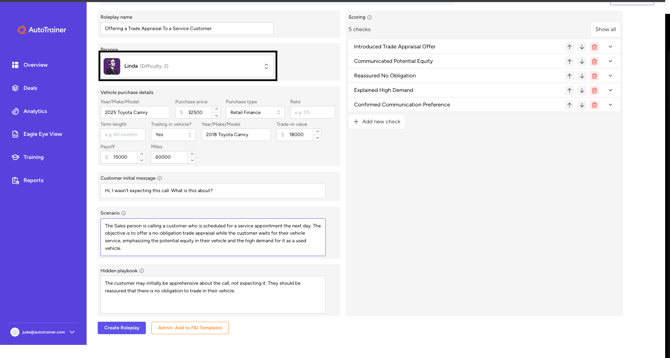
Figure 5: Persona box
B. Deal/vehicle context
- Year/Make/Model, Purchase type, Rate, etc. These figures help make the AI conversation more realistic
- These can be added within the "Generate from Prompt" tool as well eg. type "Please add a Chrysler to this scenario."
C. Conversation controls
- Customer initial message – Controls who speaks first.
- Filled in = AI starts (e.g., “Hi, I wasn’t expecting this call. What is this about?”)
- Blank = Learner starts
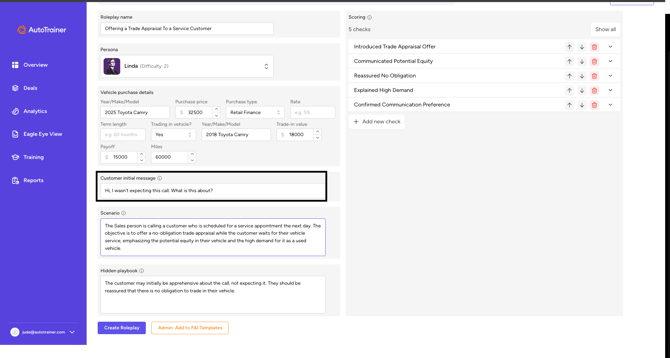
Figure 6: Customer Initial Message
- Scenario (Learner sees this) – A short setup that appears to the learner.
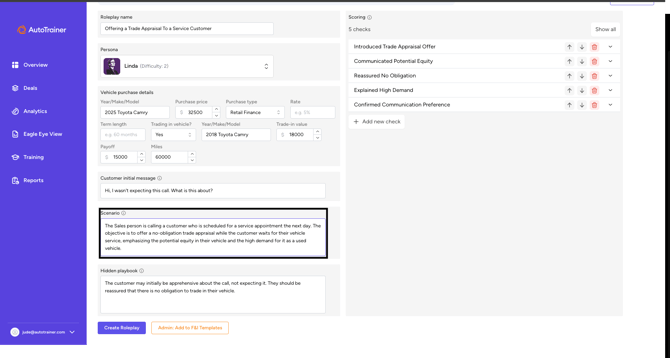
Figure 7: Scenario Box (Learner-Facing)
- Hidden playbook (AI-only) – Coaching for the AI (tone, tactics, how to react to pushback).
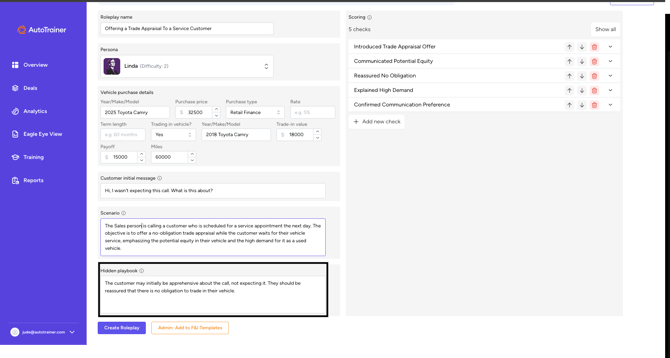
Figure 8: Hidden Playbook Box
Tip: Keep Scenario to 1–3 sentences (the “why now”). Put all the secret guidance—objections, escalation paths, compliance reminders—into Hidden Playbook.
Step 6: Define scoring (what “good” looks like)
On the right, add Checks to evaluate the learner’s performance. Examples:
- Introduced Trade Appraisal Offer
- Communicated Potential Equity
- Reassured No Obligation
- Explained High Demand
- Confirmed Communication Preference
Use Add new check, the up/down arrows to reorder, and the trash icon to remove.
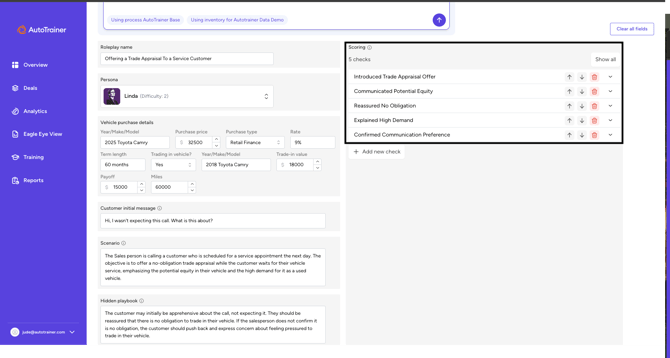
Figure 9: Scoring Checks
Best practice: Aim for 3–7 checks per lesson. Each check should be an observable behavior or message you want the learner to demonstrate.
Step 7: Create the lesson
Click Create Roleplay at the bottom. The lesson is added to your course and ready to assign.
FAQs
Who speaks first—the AI or the learner?
- If Customer initial message contains text → AI speaks first.
- If it’s blank → Learner speaks first.
What’s the difference between Scenario and Hidden Playbook?
- Scenario is visible to the learner and sets the scene.
- Hidden Playbook is only for the AI and controls how it behaves throughout the roleplay.
Can I edit what the AI generated?
Yes. Everything the AI drafts is fully editable before you click Create Roleplay (and you can edit later, too).
How many scoring checks should I use?
3–7 focused checks usually work best. Make each check a single, observable behavior.
Pro tips
- Write prompts in everyday language—no special syntax needed.
- Use Hidden Playbook to script likely objections and how the AI should respond if the learner misses a key behavior.
- Keep Scenario concise so learners jump into conversation quickly.
- Name lessons consistently (e.g., Dept – Objective – Customer Type – Level).