
Step 1 — Create a new Deal
-
In the left sidebar, click Deals.
-
Click + Create New Deal at the top left.
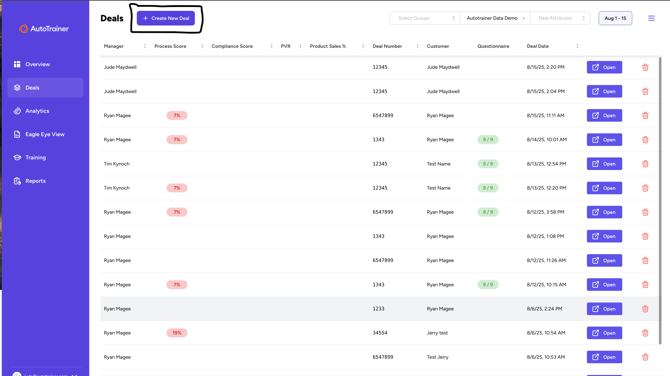
Figure 1 — Click + Create New Deal from the Deals list.
Step 2 — Fill out the Deal details
-
Complete the required fields (marked with a red asterisk):
-
Customer Name*
-
Deal Number*
-
Car Type* (e.g., New/Used)
-
Deal Type* (e.g., Cash/Finance/Lease)
-
-
(Optional) Add VIN and Vehicle Name to keep paperwork and training reports organized.
-
Click Create New Deal.
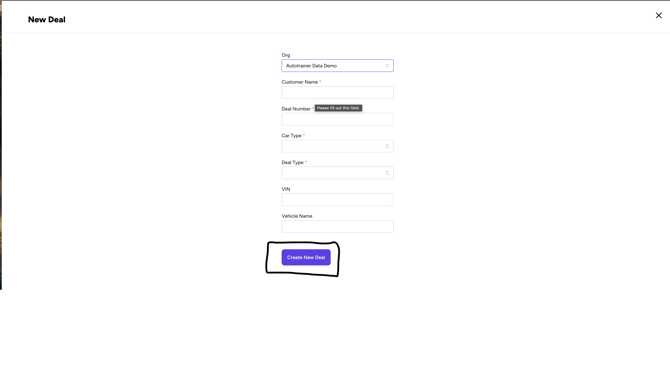
Figure 2 — Enter required fields, then click Create New Deal.
Step 3 — Start the recording from the Deal
-
After the Deal is created, you’ll land on the Deal page.
-
Click Start Recording.
-
When your browser prompts for mic access, click Allow.
-
Conduct the session. When finished, click Stop (or end the session) to save it to the Deal.
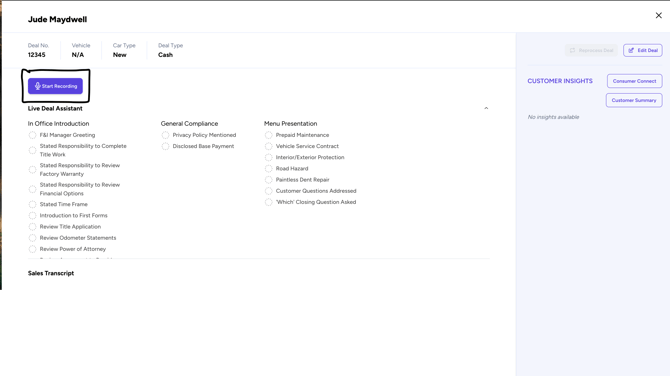
Figure 3 — On the Deal page, click Start Recording to begin.
What happens next?
-
The recording is attached to this Deal.
-
Transcription and compliance/skills checks (shown in Live Deal Assistant) will populate after processing.
-
You can review, add notes, and share the recording with a coach or manager from the same Deal page.
Troubleshooting
-
Start Recording is greyed out or missing
You may not have permission to record. Ask an admin to grant Recordings: Create access. -
No audio captured
Ensure the correct mic is selected in your browser/system settings and that the tab has permission to use it. -
Browser won’t allow mic
Try Chrome or Edge, disable strict tracking blockers for this site, and ensure you’re not in a hardened/incognito profile that blocks media.