
Clipping part of a recording
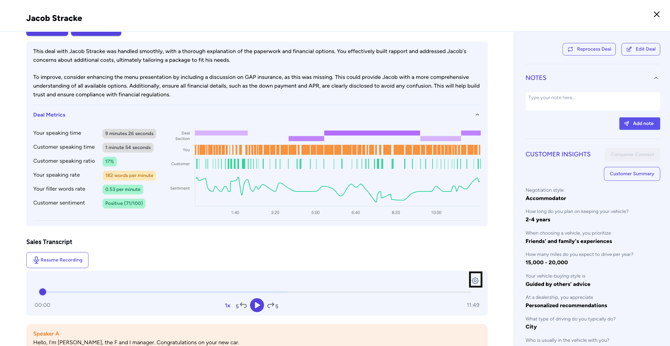
- From any recording click the Gear Icon at the top right corner:
- Click in the transcript where you would like the clip to start
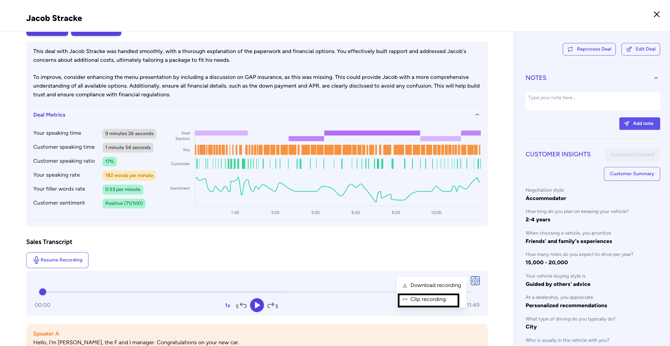
- Click Clip Recording
- Click in the Transcript where you would like the
- Click and Drag portion of Transcript where you would like the clip to end.
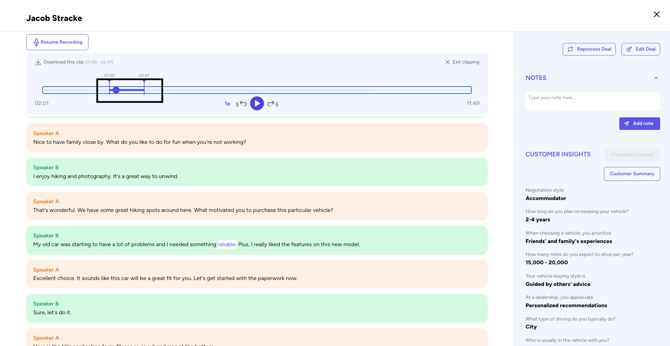
- Drag the end of the Clip bar on the Recording the the end of where you want to clip to end.
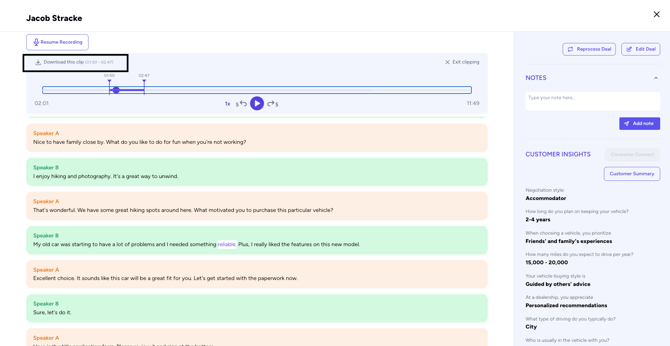
- Click Download This Clip to Download the clip and share it where you would like. Now it can be played back or shared with the FI manager for coaching purposes.
Permissions
- Clips inherit source recording permissions by default
- Admins can restrict downloads/shares outside the organization
Related: Analytics & Insights • Accounts & Access