---
title: Creating a Course In The Training Library
description: Help your team practice with curated lessons and role‑plays by creating a course in Training → Library.
---
[Skip to content](https://kb.autotrainer.com/en/create-a-course-in-the-training-library#main-content)
English
Show submenu for translations
[](https://kb.autotrainer.com/en?hsLang=en)
- [Sign out](https://portal.autotrainer.com/_hcms/mem/logout)
Open main navigation
Close main navigation
- [Sign out](https://portal.autotrainer.com/_hcms/mem/logout)
- English
Show submenu for translations
- [Contact us](https://www.autotrainer.com/contact-us)
[Contact us](https://www.autotrainer.com/contact-us)
How can we help you?
- There are no suggestions because the search field is empty.
1. [AutoTrainer FAQ](https://kb.autotrainer.com/en?hsLang=en)
2. [Roleplay Solution](https://kb.autotrainer.com/en/roleplay-solution?hsLang=en)
3. [RolePlay How-To's](https://kb.autotrainer.com/en/roleplay-solution?hsLang=en#roleplay-how-tos)
# Creating a Course In The Training Library
## This article will show you how to create a new Course in the Role Play Library
### Who can do this?
- **Organizers** (or users with permission to manage Training) in your AutoTrainer account.
If you don’t see Create New Course, ask an admin to grant you Organizer permissions.
### At a glance
1. Go to **Training→Library**
2. Click **Create New Course**
3. Complete the form (Name + Roleplay type are required)
4. (Optional) **Publish** the course so everyone can see it in the Library
5. Click **Create Course** and then open it to add lessons
### Step‑by‑step
1. **Open The Library**
1. From the left sidebar, choose **Training,** then click the **Library** tab at the top!
2. You'll see your list of courses.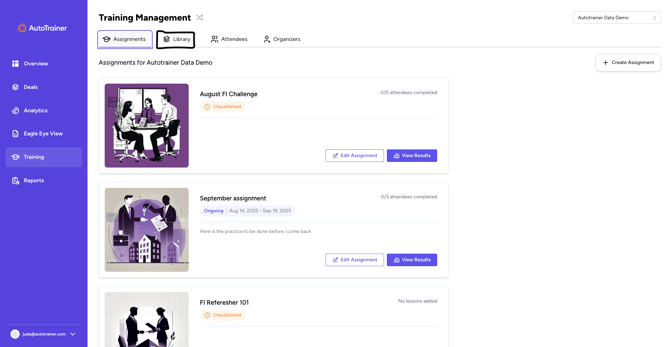
2. **Start a new course**
1. In the top‑right, click **Create New Course.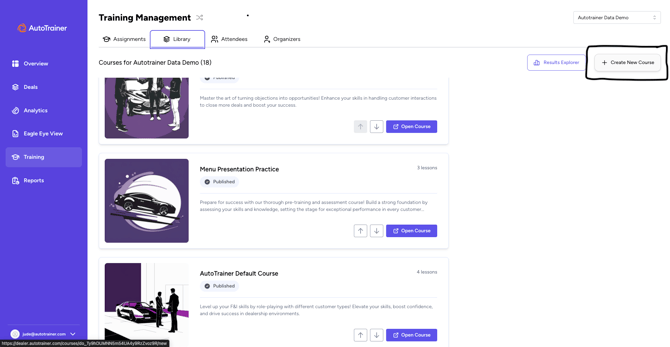**
3. **Fill out the course details**
1. On the **Create New Course** page, complete the fields:
1. **Name** *(required)* — a clear, searchable title (e.g., Menu Presentation Practice).
2. **Description** — tell users what skills they’ll practice and why it matters.
3. **Course image** — click **Change** image to upload or swap the default artwork.
4. **Allow text input when interacting with AI** *(optional)* — enable if you want learners to type free‑form responses (in addition to voice or button options, depending on your setup).
5. **Publish course** *(optional)* — make the course visible to all users browsing the Library. Leave unchecked to keep it as a draft while you build lessons. 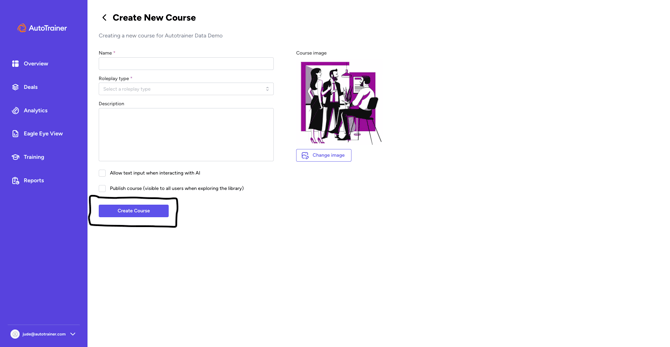
4. **Create the course**
1. Click **Create Course.** You’ll return to the Library and see your new course in the list.
5. **Open the course and add lessons**
1. Click **Open Course** to enter the course workspace.
2. Add lessons/role‑plays tailored to the course’s goal (for example, objection handling, menu presentation, or default F&I practice).
3. Reorder lessons as needed. Courses in the Library can also be moved up or down using the arrows.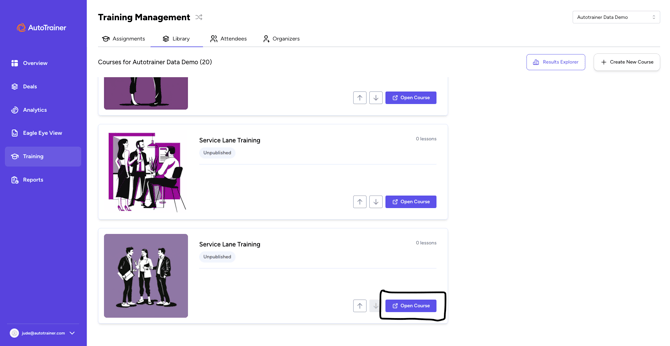
**Next step:** When your course is ready, assign it to learners via **Training** **→ Assignments.** From there you can set due dates and track completion with **View Results.**
**Publish vs. Unpublished**
- **Published —** visible to all users exploring the **Library**. Great for ready‑to‑use training.
- **Unpublished (draft)** — visible only to **Organizers**. Use this while you’re building or revising.
**Troubleshooting**
**I can’t see the Create button.**
You likely don’t have Organizer permissions. Ask an admin to update your role.
**My course isn’t showing to learners.**
Open the course and ensure Publish course is enabled. Also check that lessons are added.
**Learners can’t type responses.**
Edit the course and enable **Allow text input when interacting with AI.**
- [Getting started](https://kb.autotrainer.com/en/getting-started?hsLang=en#main-content)
- [AutoTrainer One-Sheet](https://kb.autotrainer.com/en/getting-started?hsLang=en#autotrainer-one-sheet)
- [Roleplay Solution](https://kb.autotrainer.com/en/roleplay-solution?hsLang=en#main-content)
- [RolePlay How-To's](https://kb.autotrainer.com/en/roleplay-solution?hsLang=en#roleplay-how-tos)
- [Videos](https://kb.autotrainer.com/en/roleplay-solution?hsLang=en#videos)
- [Recording](https://kb.autotrainer.com/en/recording?hsLang=en#main-content)
- [Videos](https://kb.autotrainer.com/en/recording?hsLang=en#videos)
- [Reporting and Data Management](https://kb.autotrainer.com/en/reporting-and-data-management?hsLang=en#main-content)
- [Videos](https://kb.autotrainer.com/en/reporting-and-data-management?hsLang=en#videos)
[](https://autotrainer.com)
[mailto:support@autotrainer.com](mailto:support@autotrainer.com)
Copyright © 2025, Anomaly Labs Inc d/b/a AutoTrainer