---
title: AutoTrainer One Page User Guide
description: This article covers the basics over AutoTrainer including Logging in, Recording a deal, completing a RolePlay, and shows you how Coach Mode works.
---
[Skip to content](https://kb.autotrainer.com/en/autotrainer-one-page-user-guide#main-content)
English
Show submenu for translations
[](https://kb.autotrainer.com/en?hsLang=en)
- [Sign out](https://portal.autotrainer.com/_hcms/mem/logout)
Open main navigation
Close main navigation
- [Sign out](https://portal.autotrainer.com/_hcms/mem/logout)
- English
Show submenu for translations
- [Contact us](https://www.autotrainer.com/contact-us)
[Contact us](https://www.autotrainer.com/contact-us)
How can we help you?
- There are no suggestions because the search field is empty.
1. [AutoTrainer FAQ](https://kb.autotrainer.com/en?hsLang=en)
2. [Getting started](https://kb.autotrainer.com/en/getting-started?hsLang=en)
3. [AutoTrainer One-Sheet](https://kb.autotrainer.com/en/getting-started?hsLang=en#autotrainer-one-sheet)
# AutoTrainer One Page User Guide
## This article covers the basics over AutoTrainer including Logging in, Recording a deal, completing a RolePlay, and shows you how Coach Mode works.
Welcome to **AutoTrainer AI Role play!** This guide will walk you through how to navigate the system, structure your training sessions, and make the most out of your roleplay practice. ***Tip: Bookmark*** *dealer.autotrainer.com* ***for quick access!***
### **Logging In to AutoTrainer**
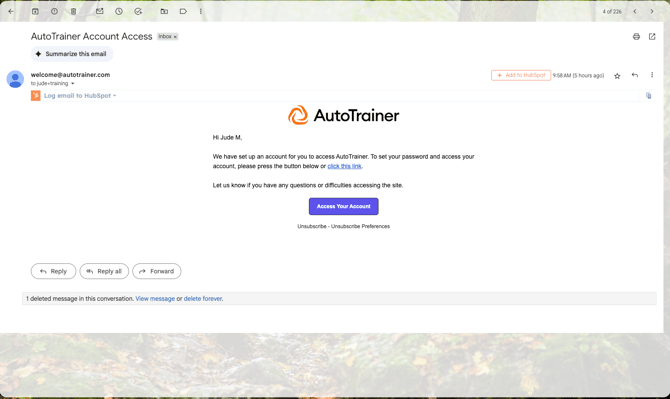
You should have received an email from **Welcome@AutoTrainer.com**. Select the **"Access Your Account"** button to set your password.
Your password must contain:
- At least **8 characters**
- At least **3 of the following**:
- Lowercase letters (a-z)
- Uppercase letters (A-Z)
- Numbers (0-9)
- Special characters (e.g., !@#$%^&\*)
#### **Forgot Your Password?**
If you forget your password:
1\. Go to **dealer.autotrainer.com**
2\. Select **"Forgot Password"**
3\. Enter your email address to receive a reset link
4\. Follow the instructions in the email to create a new password and regain access.
### **Using the AutoTrainer Recording Solution**
#### **1. Create a Deal**
- Go to the "**Deals"** tab and click "**Create New Deal"**
- Fill in the required fields: **Customer Name, Deal Number, Car Type, and Deal Type**
- **VIN** is optional. If entered, the **Vehicle Name** field will auto-populate based on the VIN.
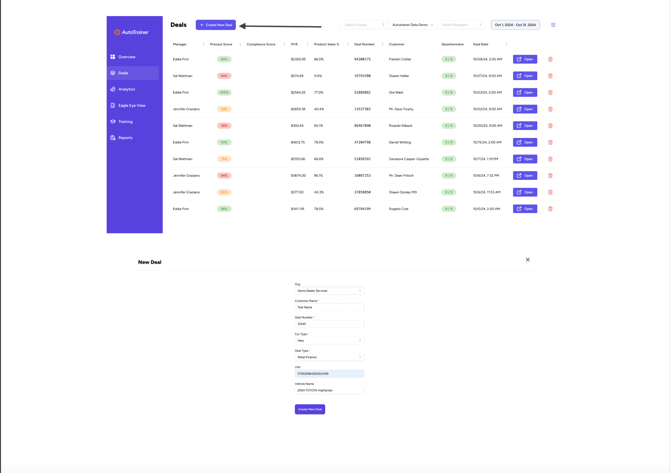
Fill in the required fields: **Customer Name, Deal Number, Car Type, and Deal Type**.
**VIN** is optional. If entered, the **Vehicle Name** field will auto-populate based on the VIN.
### **2. Send the Customer Interview Survey**
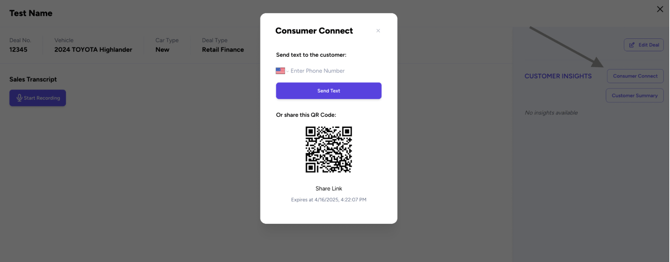
- You can either:
- Enter the guest’s phone number,
- Show them the QR code to scan, or
- Share the link directly.
- Don't need to send the survey? Just close the popup.
- To access the survey later, click the **"Consumer Connect"** button within the deal.
### **3. Start Recording**
- Click **"Start Recording"** to begin. You’re free to move through your transaction as usual.
- Keep the AutoTrainer tab open — it can run in the background.
- When finished, click **"Stop Recording"**
- *Forgot to stop it? No problem.* AutoTrainer will auto-end the recording after 15 minutes of inactivity or once the system detects the transaction has ended.
### **4. Review & Analyze**
- Within ~5 minutes, you’ll get an email confirming the recording is processed.
- From there, you can revisit the deal to view a full summary & feedback, key deal metrics, and scoring results.
### **AutoTrainer Role play Solution**
#### **How Courses and Lessons are Structured**
**AutoTrainer is designed to help you sharpen your F&I skills through realistic customer interactions. Each course consists of multiple lessons, each focused on a specific scenario you’ll encounter in the dealership.**
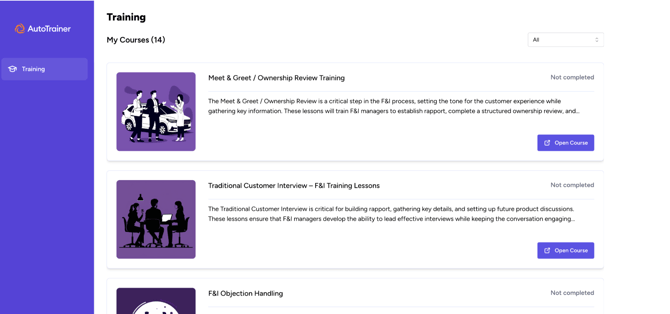
- Within the “Training tab” Choose a course, then select a lesson to practice.
- Every lesson begins with a scenario briefing to set the stage for the conversation.
- The AI customer will interact with you just like a real customer would.
- You’ll receive scoring and feedback based on how well you handle the conversatio
### **How to Start a Role play Lesson**
#### **Once you enter a lesson:**
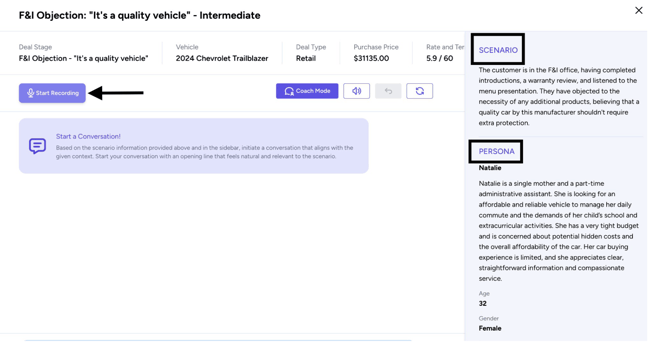
1. Click "Start Recording" to begin the role play. This ensures your session is tracked and evaluating the feedback
2. Speak first. The AI customer will not begin the conversation—you need to start. You can either:
1. Jump straight into the scenario.( e.g., "Let's review the coverage options available to you today."
2. Use an open-ended statement to let the AI initiate naturally
(e.g.,"Congratulations on your new vehicle! Are you ready to move forward?").
3. Let the AI respond. There may be a slight delay before the AI answers—this is normal.
4. Do not interrupt the AI. Allow the AI customer to fully complete their response before speaking again. This ensure a smooth role play experience. To ensure this, we have added a microphone icon next to your avatar in the system to know when it is your turn to speak.
#### **How To Restart a Scenario**
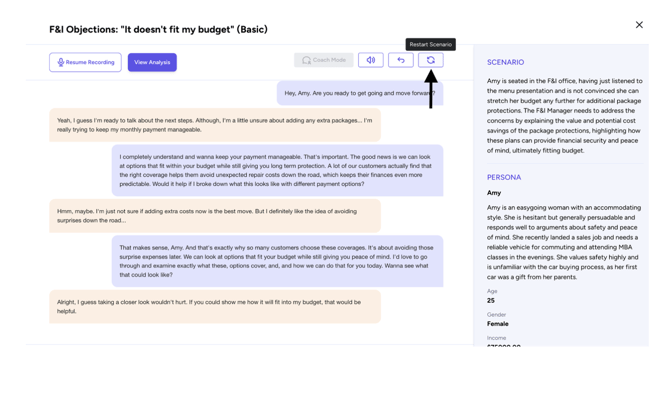
**If you want to restart the conversation, simply:**
1. Click the "Restart Scenario" button.
2. The conversation will reset, and you can begin again from the start.
### **What Is Coach Mode and How Do I Use It?**
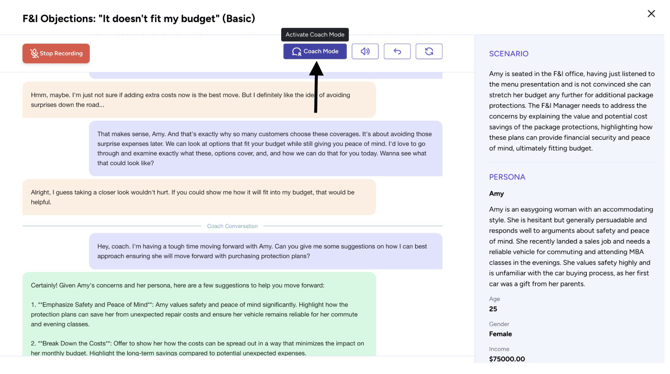
**Coach Mode is an on-demand support tool that provides real-time guidance during your role play session.**
- If you're stuck or need advice on handling a scenario, click "Coach Mode" to initiate a private chat with your personal coach.
- You can ask questions like:
- “What’s the best way to overcome this objection?”
- “How do I explain this warranty in a way that builds value?”
- When you're ready to return to the conversation, click "Coach Mode" again to resume your role play with the AI Customer.
**Support**
If you have trouble logging in, using the system, or have general questions or feedback, please
reach out to:
[📧 Support@AutoTrainer.com](mailto:support@autotrainer.com)
📞 **802-338-1556**
- [Getting started](https://kb.autotrainer.com/en/getting-started?hsLang=en#main-content)
- [AutoTrainer One-Sheet](https://kb.autotrainer.com/en/getting-started?hsLang=en#autotrainer-one-sheet)
- [Roleplay Solution](https://kb.autotrainer.com/en/roleplay-solution?hsLang=en#main-content)
- [RolePlay How-To's](https://kb.autotrainer.com/en/roleplay-solution?hsLang=en#roleplay-how-tos)
- [Videos](https://kb.autotrainer.com/en/roleplay-solution?hsLang=en#videos)
- [Recording](https://kb.autotrainer.com/en/recording?hsLang=en#main-content)
- [Videos](https://kb.autotrainer.com/en/recording?hsLang=en#videos)
- [Reporting and Data Management](https://kb.autotrainer.com/en/reporting-and-data-management?hsLang=en#main-content)
- [Videos](https://kb.autotrainer.com/en/reporting-and-data-management?hsLang=en#videos)
[](https://autotrainer.com)
[mailto:support@autotrainer.com](mailto:support@autotrainer.com)
Copyright © 2025, Anomaly Labs Inc d/b/a AutoTrainer