
Summary
Use this guide to add a brand‑new Role play lesson to any course in your AutoTrainer Library. You can either generate a lesson from a prompt, or build one from a template, then fine‑tune details like Persona, Scenario, Customer initial message, and the Hidden playbook.
Terminology
- Customer initial message (optional): If you enter text here, the AI speaks first in the role play. Leave blank if you want your trainee to start the conversation.
- Hidden playbook: Internal behaviors and guidance the AI follows that trainees do not see. Use it to shape the AI’s tone, tactics, and scenario logic.
Before you start
- Confirm you have permission to edit courses in your workspace.
- Identify the course that should receive the new lesson. (You can create a new course if needed.)
Steps
- Open the Library
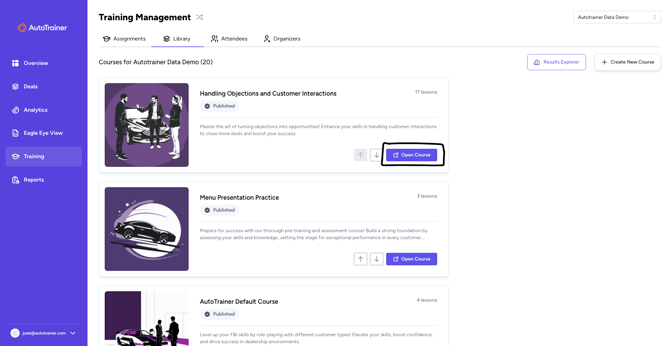
- In the left navigation, select Training → Library.
- Locate the target course. Click Open Course.
- Click Add lesson inside the course
- On the course page, use the Add lesson button in the upper‑right. (You can re-order lessons later with the up/down arrows on each lesson card)
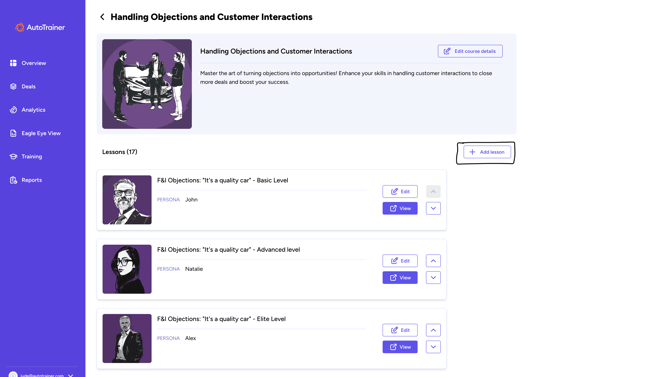
- On the course page, use the Add lesson button in the upper‑right. (You can re-order lessons later with the up/down arrows on each lesson card)
- Choose how to create the lesson
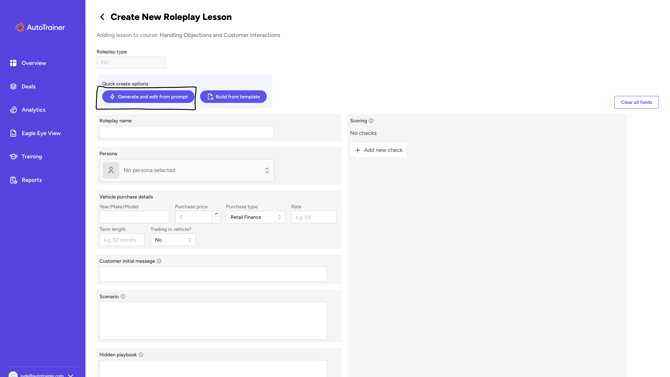
- On Create New Roleplay Lesson, pick one of the Quick create options
- Generate and edit from prompt – Describe what you want; AutoTrainer drafts the lesson and you refine it.
- Build from template – Start from a pre‑built structure.
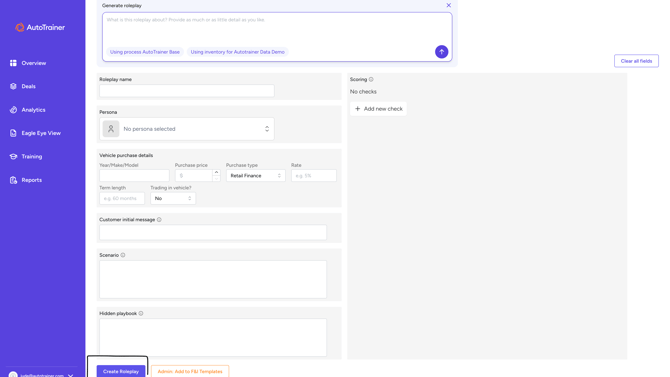
- If you choose Generate and edit from prompt, type your idea (e.g., “F&I objections: customer believes ‘It’s a quality car’”) and submit.
- On Create New Roleplay Lesson, pick one of the Quick create options
- Complete the lesson details
- Fill in or review these fields:
- Roleplay type – Pick the training track (e.g., F&I).
- Persona – Which AI customer persona to roleplay.
- Vehicle purchase details – Year/Make/Model, price, purchase type & rate, term, trade‑in. These shape realistic dialogs.
- Customer initial message (optional) – If filled, the AI opens the conversation using this message.
- Scenario – The visible setup and objectives for the learner.
- Hidden playbook – Private guidance for the AI (behavior rules, must‑hit points, allowed concessions, tone). Trainees won’t see this.
- Scoring – Click Add new check to define the behaviors you want to evaluate (e.g., “Explains rate vs. APR,” “Handles objection with value statement”).
- Fill in or review these fields:
- Create the lesson
- When ready, click Create Roleplay. The lesson is added to your course immediately.
- When ready, click Create Roleplay. The lesson is added to your course immediately.
What’s next?
- Re‑order lessons: Use the arrows on the lesson cards to move the new lesson up or down.
- Publish status: Courses and lessons show a Published or Unpublished badge in the Library. Publish to make them available to learners.
- Assign to learners: From Training → Assignments, create or edit an assignment to include this course so your team can complete it.
FAQ's
Q: Do I have to fill in Customer initial message?
A: No. It’s optional. If you leave it blank, the trainee starts the conversation. If you fill it in, the AI starts.
Q: Will trainees see the Hidden playbook?
A: No. It’s visible only to editors and controls behind‑the‑scenes AI behavior.
Q: Can I copy this lesson to another course?
A: Yes—open the lesson, use available duplicate or template options (if enabled), or generate a new one from a prompt with the same details.
Q: Where do I measure performance?
A: Use Results Explorer in the Library or view Assignments → View Results for completion and scoring.
Related articles
- Create a Course in the Library
- Create and Publish an Assignment